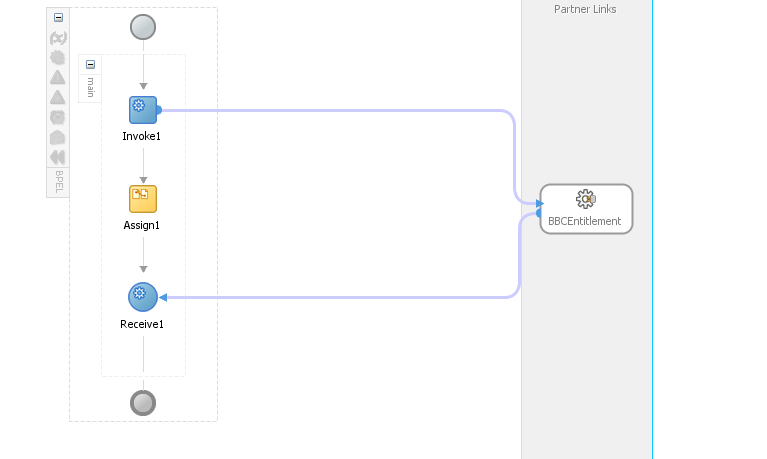
In Oracle SOA 11g adapters are using JCA 1.5 specification to connect to the underlying resources such as JMS, database, file/ftp, sockets and etc.

There 3 steps to do in order to successfully use JmsAdapter to access the JMS destination in Oracle Bpel.
- Add JmsAdapter into your Bpel in JDeveloper. Adding it is actually following the steps of Adapter Configuration Wizard.
Wizard Step 2: Give the service name to JMS Adapter.

Wizard Step 3: Select Oracle Weblogc JMS as JMS provider.

Wizard Step 4: Specify the application server for connection.

Wizard Step 5: Select to define from operation and schema as the adapter interface.

Wizard Step 6: This adapter is used to produce message.

Wizard Step 7: Specify the JMS destination and JNDI name for the connection factory.
Please note here: Destination name is the JNDI name for the destination used in normal JEE JMS resource.
And connection factory is the JNDI name used in JMS Adapter rather than JNDI in normal JEE JMS resource.

Wizard Step 8: Specify the schema for the payload of the JMS message.

After all wizard steps are finished, one .jca file is created where the connection factory and destination are specified.
- Configure deployed JmsAdapter from Console to add outbound connection.
Click on Your domain/Deployments in Console and then select JmsAdapter.

Click on Configuration tab and then click on Outbound Connection Pools and then expand the group oracle.tip.adapters.jms.IJmsConnectionFactory.

Click the New button and select oracle.tip.adapters.jms.IJmsConnectionFactory.

Click on Next button and type in JNDI name for Outbound Connection Instance.
Please note here: This JNDI name should be the same as you specify in Wizard Step 7 when configuring Adapter in JDeveloper and then click on Finish button.

Modify the property of ConnectionFactoryLocation of this new created Outbound Connection.
Select your domain/Deployments/JmsAdaoter and then select Configuration tab and then expand oracle.tip.adpater.jms.IJmsConnectionFactory. Click on the new created Outbound connection:
eis/wls/InventoryQueueConnectionFactory and then click on

Then type in the JNDI name of JMS connection factory as the value to the property: ConnectionFactoryLocation.
- Configure physical JMS destination and connection factory in Oracle Weblogic Enterprise Manager.
Click on your domain/Services/Messaging/JMS Modules

Select KMS Module: SOAJMSModule.

Click on New Button to create the JMS destination.

Select the type of resource to be created as Queue and then click on Next button.

Type in the name of the physical queue and JNDI name for this queue and then click on Finish button.
Repeat the creation process to create the JMS connection factory.

Click on New button.

Select the type of resource to be created as Connection Factory and then click on Next button.

Type in the name for the queue connection factory and JNDI name for this connection factory.
Please note: This JNDI name should be the same as the value of the property
Finally click on Finish button.
- Test the JMS message is sent to the queue.
After successfully running your BPEL one message should be sent to the queue. It can be verified using Console.
Click on your domain/Services/JMS Modules in Console and then click on SOAJMSModule.

Find your queue destination and click on it and then click on Monitoring tab.

And you will find there is one message in the queue destination. Select this queue and click on Show Messages to see the content of the message payload.

Click on the message ID and the content of the message is displayed.